Search The SAP Consultant

Thursday, April 13, 2017

S4Hana Finance Improvements - Profitability analysis

On the next few posts, I would like to discuss the improvements made as part of S4Hana finance. As the first topic on this series, lets take a look at the improvements made to profitability analysis.

S4Hana finance introduces a new type of profitability analysis called profitability analysis on universal ledger. This new type of profitability analysis is similar to accounting based COPA but includes some of the functionalities that were only available in costing based COPA in previous versions. It has to be noted that costing based COPA is still in play since some of the functionalities such as multiple valuations using COPA costing sheets, user exits etc. are only available in costing based COPA even after the introduction of COPA on universal ledger.


1. Splitting of cost of goods sold by cost components.

This was one of the compelling reasons for the selection of costing base COPA by most of my clients. This is where we could map the cost components of the standard cost of a material to separate value fields in costing based COPA while the accounting based COPA was posted with one cost of goods sold account. But this came with a major draw back where the cost of goods sold was posted in costing based COPA when the customer billing document is posted while the cost of goods sold is recognized in general ledger during post goods issue. This resulted in timing differences between GL reports and costing based COPA reports. Anyone who implemented costing based COPA would agree that this is one of the biggest complaints from the finance teams who try to reconcile costing based COPA reports to their general ledger based P&L.

SAP has given a simple solution as part of S4Hana finance to address this long standing issue.

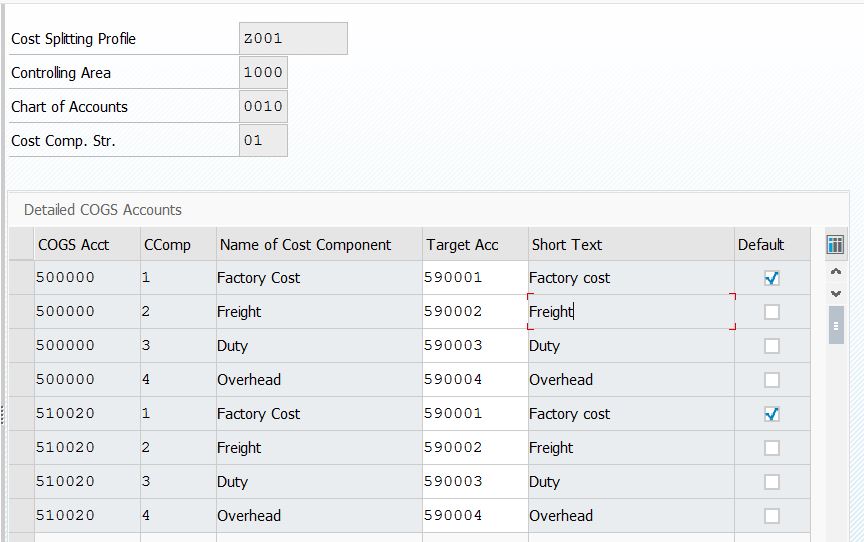
As a first step we need to create and assign a cost splitting profile to the combination of controlling area and cost component structure. Splitting profile will then be assigned to company codes.

Financial Accounting (New) à General Ledger Accounting (New) à Periodic Processing à Integration  à Materials Management  à Define Accounts for Splitting the Cost of Goods Sold


Then separate GL accounts could be mapped to each cost component and cost of sales account.


Lets see the result of this in the cost of goods sold posting during post goods issue.


As it can be seen above, system have reclassified the cost of goods sold into respective cost components during post goods issue posting.


2. Splitting of production variances by variance category

Another short coming in the traditional accounts based COPA was that we could not analyze production variances by the variance categories since different variance accounts couldn't be mapped by variance category. This was possible in the costing based COPA using PA transfer structure. There were no timing differences between costing based COPA and accounting based COPA for production variance postings since both were updated during production order settlements but having this improvement to be able to map separate GL accounts by variance category is definitely a welcoming addition in SAP.

To activate this we need to define a price differences splitting profile and assign to company codes.

Financial Accounting (New)  à General Ledger Accounting (New)  à Periodic Processing  à Integration  à Materials Management  à Define Accounts for Splitting Price Differences

once the splitting profile is defined, you can map separate GL accounts for each production variance category.

In addition to the two improvements mentioned above, profitability analysis on universal ledger allows three additional unit of measures to be captures during COPA postings

Controlling  à General Controlling  à Additional Quantities  à Define Additional Quantity Fields
SAP provides the BADI "FCO_COEP_QUANTITY" to convert quantities and update universal ledger.

Hope this post helps you guys and please note that this is based on S4Hana finance add-on version 1605 or S4Hana version 1610 and this may change with the future releases.

Friday, December 30, 2011

Solution for outsourced checks

On this post I would like to talk about a solution that could be implemented to facilitate outsourced check printing. This solution assumes that the bank prints the check using the check number generated by SAP and transmitted to bank using an XML file.  Bank communication management is used to facilitate the internal approvals. But the detailed configuration steps needed for BCM would be discussed in a future post.

Step 1
Create a payment method for outsourced check using payment medium workbench.


Step 2
Map the Payment medium format to DME engine.


Step 3
Crete the DME tree for XML format.


Step 4
Create a check lot number range and assign the payment method to the lot as shown below.


This concludes the necessary configuration steps. (BCM configuration would be discussed later)
Now let’s see how the payment process for an outsourced check would be done using this setup.

Step 1
Execute the automatic payment run.


Step 2
Approve the payment using BCM. I will write about BCM in a future post.


Once the payment is approved, SAP would generate the XML file using DME. This file would contain the check number and other payment information to be sent to bank.


This would also update the check registry in SAP. Subsequent electronic bank statements could be used to update cleared checks.

Hope this helps you guys. See you next time.

Sunday, May 01, 2011

Mix costing on SAP

On this post I would like to have a look at the mix costing functionality offered by SAP. This functionality could be used to calculate the average standard cost for a material that is procured/produced using multiple sources. Lets look at it step by step.

Step 1 – Define Quantity Structure (Configuration)

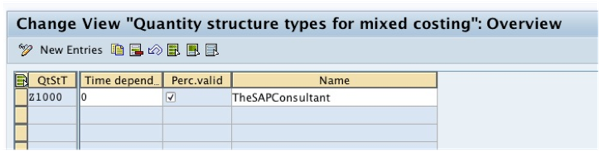
Define a quantity structure type as stated below.

Menu path on SPRO - Controlling → Product Cost Controlling → Product Cost Planning → Selected Functions in Material Costing → Define Quantity Structure Types

NewImage

Step 2 - Define Costing Versions (Configuration)

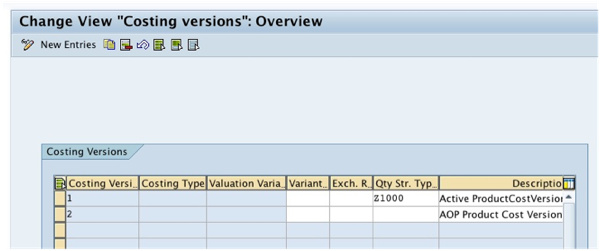
Assign the quantity structure type to the costing version.

Menu path on SPRO - Controlling → Product Cost Controlling → Product Cost Planning → Selected Functions in Material Costing → Define Costing Versions

NewImage

Step 3 - Maintain Procurement Alternatives for the material (Master data)

Maintain the procurement alternatives for the selected material using the transaction code CK91N. These would later be used to maintain the mixing ratios.

NewImage

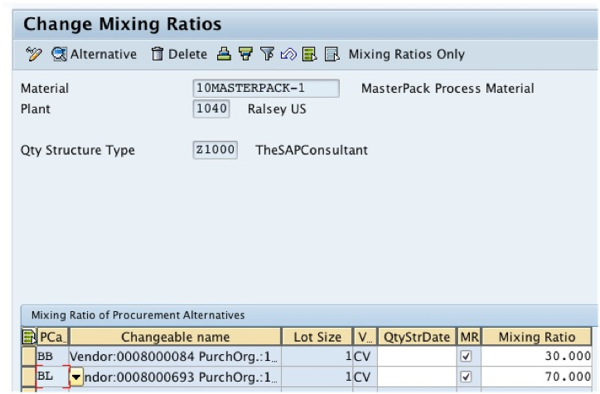
Step 4 – Maintain the mixing ratio for the selected material (Master data)

Maintain the mixing ratio for the material using the transaction code CK94.

NewImage

Step 5 – Execute the costing run

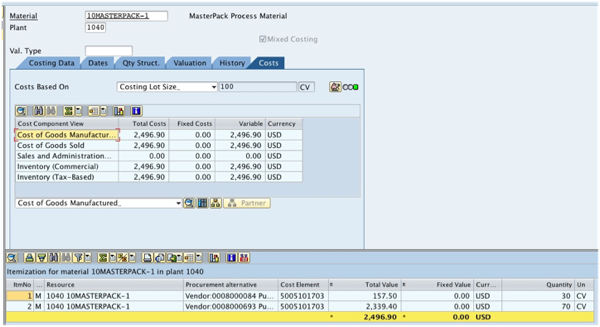
Execute the costing run using either CK11N or CK40N. Now the costing run would calculate the standard cost based on mix ratio.

NewImage

Hope this post helps you guys. Please don't hesitate to drop your comments.

Saturday, November 20, 2010

Dual control on GL postings

On this post I would like to share a simple solution that would enable the companies to implement dual control on journal postings. In other words this solution would make sure that two users are involved on each journal posting where one person parks the document and another one posts it. Unlike the traditional authorization based solutions, none of the users are restricted at the transaction code level. This is how the solution works.

1. First user parks the document using FB50. If the user attempts to post, system throws an error message.
2. Second user posts the document using FBV0. If the second user attempts to post his own-parked document, system throws an error message.

Now lets see how this solution is implemented.

Step 1

Create a validation rule at complete document level with userexit.


Step 2

Implement the following logic in the validation userexit.


FORM us007 USING b_result.

* Enhancement by Shathees Loganathan.

select single * from VBKPF where BELNR = BKPF-BELNR and BUKRS= BKPF-BUKRS and BSTAT = 'V'.

if sy-subrc = 0.

if VBKPF-USNAM = SYST-UNAME.

Message e019(ZLF01).

b_result = B_FALSE.

endif.

else.

Message e018(ZLF01).

b_result = B_FALSE.

endif.

ENDFORM.

Now lets see how would this affect the journal entries.

Step 1

First user parks the document using FB50. If the user tries to post the document, the following error message is shown.

First user parks the document.

Second user posts the document using FBV0. If the second user tries to post a document parked by him, the following message is shown.

If the second user posts a document parked by another user, system allows the document to be posted.

This solution could be further enhanced. For example we could allow certain managers to post the document directly through an exception process or we can implement this dual control to certain GL accounts or document types.

Hope this is useful. See you all next time.

Wednesday, November 10, 2010

Dispute management (Chargeback)

Today I’m going to talk about the dispute management module delivered by SAP under financial supply chain management solution. Typically when the dispute management module is not implemented, users would store key information related to disputes or chargeback on the accounting document line item text on the residual items (Or some where on the accounting document).

When the dispute management module is implemented, one of the key requirements would be to copy this information to the Notes on dispute cases. Using the following solution, this can be easily implemented.

Step 1

Implement the BADI ZFDM_AR_DEF_NOTE.

Step 2

Implement the code shown below in the method GET_DEFAULT_NOTE

Data : wa_note type TLINE,

wa_bseg type bseg.

select single * from bseg into wa_bseg where belnr = I_DISPUTE_DATA-BELNR_AKT and GJAHR = I_DISPUTE_DATA-GJAHR_AKT

and BUZEI = I_DISPUTE_DATA-BUZEI_AKT.

if sy-subrc = 0.

append initial line to c_note.

loop at c_note into wa_note.

wa_note-TDLINE = wa_bseg-SGTXT.

MODIFY c_note INDEX sy-tabix FROM wa_note

TRANSPORTING TDLINE.

endloop.

endif.

endmethod.

Now when the disputes are created using the transaction code FDM_AUTO_CREATE, Line items text would automatically be added to the dispute notes.

Hope this helps. See you next time.

Tuesday, July 20, 2010

Payment approval on F110

Today I’m going to talk about a solution that I have implemented for one of my clients. The requirement was to implement an approval process for the vendor payments. Basically my client wanted to review and approve the out going payments generated by SAP automatic payment program. For simplicity I have broken down the steps below.

Step 1

Implement the business transaction event 1120. Please refer to my post related to BTE for detailed information.

Step 2

Within the function module that have been created for BTE 1120, Implement the following logic.

As you can see from the above screen print, I have extracted the payment ID and the date from the accounting document header text.

I have created a custom tableZPAAPPROVAL to facilitate a simple approval process. But this can be enhanced based on the approval requirements.

Now lets see how this solution works. When a payment run is executed, system allows the payment proposal to be created but throws an error message when the user tries to execute the payment run.

Manager can approve the payment using the approval logic implemented. In my case, manager approves it using the table ZPAAPPROVAL. Once the approval is obtained, system allows the payment to be made.

I hope this post is useful to you. Please feel free to leave your comments.

Wednesday, April 21, 2010

SAP’s SME Solutions – A Guide to the Product Portfolio

Dear readers,

I have come across an interesting post regarding various products offered by SAP to cater to various market needs. I thought it would be pretty informative to a potential decision maker.


Hope the above would be useful to any potential SAP buyer.

See you next time.

Thursday, November 26, 2009

Queries

Hi Friends

Would really appreciate if you can post your queries on the forum rather than the comment section of this blog. This will allow other users also to give their input. And I will try to respond to all the queries as soon as possible.

Once again, Thank you very much for all your support.

Sunday, September 28, 2008

Simple SAP workflow

I’m writing this post after a long time and would really like to thank all my readers for their continues support to my work. On this post I would like to share some basic knowledge on Standard SAP workflow configuration for parked document release procedure. For simplicity I have broken down the configuration into the following steps.

Step 1 - Define organization structure for approval process

Use transaction PPOCE to define the organization structures and positions needed for Approval. The positions defined here would be assigned to the approval paths later. Users would be assigned to each position.


Step 2 – Create workflow variant

Use the menu path shown below to create a workflow variant


Make sure to activate the “Posting release” tick (This makes sure that each parked document should be released to be posted). The option “Release from” can be used to define a minimum amount from which the release procedure should be activated.


Step 3 – Assign the workflow variant to company code

Assign the variant created above, to the company code.


Step 4 – Create approval group

Approval groups can be assigned to customer or vendor master data. This will then be used to determine the approval path along with the document types.


Step 5 – Define approval paths

On this step, define the approval paths for approval procedure. Approval path along with workflow variant would determine the Approval steps, amount limits and the approvers.


Step 6 – Determine approval paths

As I said before the approval path would be determined based on accounting document types and the approval groups maintained on customer/vendor master data.


Step 7 – Assign release approval procedure

On this step we would determine the level of approval needed for the given workflow variant, approval path and amount combination. Depending on the approval level needed, we would assign the relevant sub workflow template.

For a one level approval, sub workflow template WS10000052 would be used. For a two level approval, template WS10000053 would be used. For three level approval, template WS10000054 would be used.


Step 8 – Assign approvers

On this step, the positions created on step 1 would be assigned to the appropriate approval paths.


Click on "Details (OrgObject) to assign the approvers


Finally link the workflow variant WS10000051 to the event FIPP – CREATED using transaction SWETYPV.


That’s it. You have configured the basic workflow for the accounting document approval procedure. Now every time a document is parked, a SAP message would be generated and sent to the appropriate approver

Approver can use transaction SBWP to view the messages and approve or reject items.


I hope this post would have given you a basic idea about SAP workflows. Would really appreciate your comments.

Wednesday, December 05, 2007

New address - www.thesapconsultant.com

Hi everyone,

Thank you very much for visiting my blog. I hope that I have been helpful in someway to you. And now I'm really happy to inform you that, from today you can visit my blog using the new URL www.thesapconsultant.com

Please keep on visiting my site for future updates. Thank you very much for your support and would really appreciate your feedback.

With best regards
Shathees Loganathan

Friday, November 24, 2006

Profit center balance sheet

On this post I would like to look at how the system has been designed to transfer balance sheet items to profit centers using the transactions 1KEH, 1KEI, 1KEJ, 1KEK. Often I have come across situations where the total balance of balance sheet accounts on a report painter report based on the library for GLPCT doesn’t match with the total of the line items on the called up report. This is not a Bug rather this is how the system has been designed.

When the trnasactions 1KEH, 1KEI, 1KEJ, or 1KEK being used, GLPCA table gets updated with the total balance of each object (Customer, Vendor, WIP, Material, F.Asset) for the given period. But GLPCT table update happens based on a delta technique.

Let me explain this logic using the following example.

Imagine that a customer has a constant balance of $200 in periods 1, 2, 3.

Transaction 1KEK for the period 1 would make an entry on GLPCT (Total) for $200 and another entry on GLPCA (Line item) for $200.

For the period 2, since the total balance of the customer for the given period would be updated on GLPCA table, Transaction 1KEK would update $200. But GLPCT will be updated using delta technique hence the value would be $0.

Same procedure would be followed for period 3.

When the user runs the profit center balance sheet for the periods 0-3, total amount based to GLPCT would show the correct amount $200 for the reconciliation account of the given customer. But when the user drills down and calls the standard profit center line item display report, it would show a wrong figure $600.

To correct this mismatch, user has to run the line item report only for period 3 rather than 0-3. A customer development of line item display report with the logic stated above and assignment to the report painter library for profit center reports would solve this issue.

Please feel free to send me your comments. Click on Archives to see my earlier posts.

Friday, October 06, 2006

SAP Business Transaction Events

I’m extremely sorry that I couldn’t write on my blog for some time because of the assignments that I had to finish for my clients! Today I got some free time and decided to talk about SAP business transaction events!

SAP business transaction events are one type of customer enhancements provided by SAP! On this post I’ll talk about how we can change the logic for duplicate vendor invoice check using SAP business transaction events!

We can access the business transaction events using FIBF

Next we have to find the process interface for duplicate invoice check! To do that, follow the following steps.

  • Select the menu as stated below
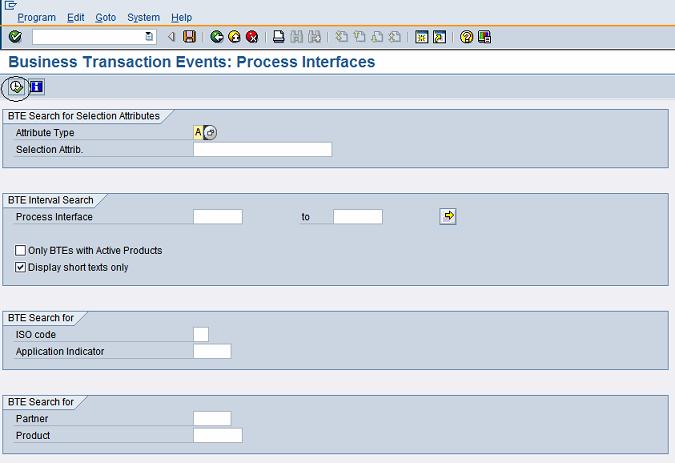
  • Execute the info system as stated below
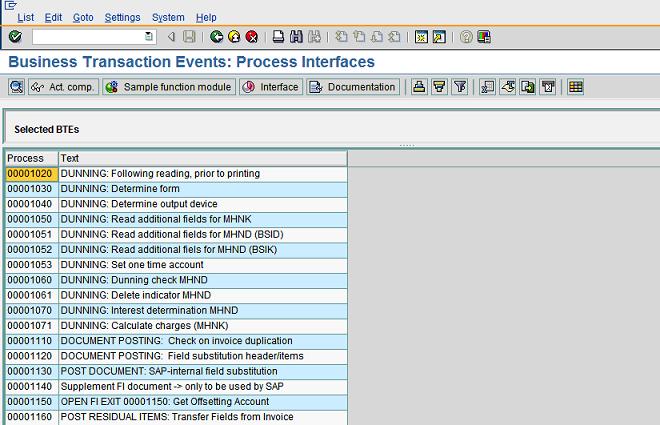
  • All the processes will be shown below
  • Select the process 1110 and click on “Sample function module” as stated below
  • Copy the sample functional module “SAMPLE_PROCESS_00001110” and create “ZSAMPLE_PROCESS_00001110”. Put the customized logic in the functional module “ZSAMPLE_PROCESS_00001110” and activate it!
  • Now go back to FIBF and execute the menu as shown below
  • Define a new product and activate it

  • Now go back to FIBF and execute the menu as shown below

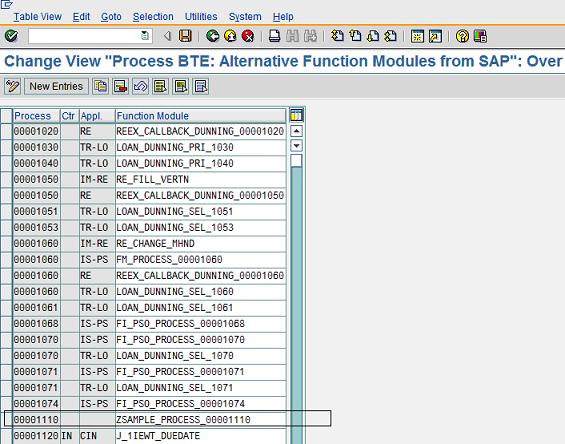
  • Assign the function module “ZSAMPLE_PROCESS_00001110” to the process “1110”and the product that was defined in the earlier step.
  • Bingo!!!!!! Now every time when a vendor invoice is being posted the invoice check will be carried out using the custom logic built into the function module “ZSAMPLE_PROCESS_00001110”. But make sure that the “double invoice check” tick has been put on the relevant vendor masters!

I hope this post about the SAP business transaction events will help your business! Thank you very much for reading my blog! Please feel free to send me your comments!